After a long time it’s time for an article again 🙂
First of all, we are in a Windows client environment, but we want to manage Linux servers and applications on them with Ansible. We can run Docker Desktop on the Windows client, which runs with the WSL2 backend.
Now you might say „Well, install a Linux distribution via WSL2 and run Ansible through it!“. But I don’t want so much overhead on the Windows client. Besides, I can take my Ansible runner later and run it on any other machine with Docker.
We can do that afterwards:
- Running Ansible playbooks using a local Docker container
- Loading Ansible Roles for Execution
- Testing Ansible Playbooks
Let’s go!
Image preparation
First, we need to build a Docker image that we can use to run Ansible. This can look like this:
FROM ubuntu:22.04

ENV container=docker
ENV pip_packages "ansible"
ENV ANSIBLE_HOST_KEY_CHECKING "False"

# Update System
RUN apt -y update && apt -y upgrade

# Install requirements.
RUN apt -y install python3 python3-pip openssh-client

# Upgrade Pip
RUN pip3 install --upgrade pip

# Install Ansible via Pip.
RUN pip3 install $pip_packages

CMD ["/bin/bash"]
I use the current Ubuntu LTS version as a base image. Then a system update and the installation of the Python packages is carried out via APT. Then pip3 is updated again, if necessary. Then the packages from the environment variable „pip_packages“ are installed. In this case it is only „ansible“. For test purposes, additional packages can be specified here and packed into another image.
Creating the image
Now the Docker image can be created. To do this, we execute the following command in the folder in which the „Dockerfile“ is also located:
docker build -t dkr-ansible-runner:0.1 .This creates the image.

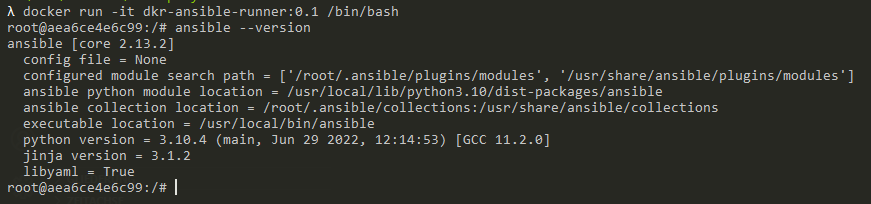
The image can then be started using the following command:
docker run -it dkr-ansible-runner:0.1 /bin/bashWith this, we go into an interactive session in the container and start a bash. This way we can test commands for the first time. Later we will load a corresponding volume with our playbook and possibly roles, as well as inventory and SSH key files and test the performance on a server in the network.
Playbook and Inventory
To perform a run with „ansible-playbook“, we need a playbook and an inventory definition. Furthermore, we should have distributed the SSH keys for the login.
Under Windows, the tool „puttygen“ can be used to generate an SSH key pair. The file can be obtained here:
https://www.chiark.greenend.org.uk/~sgtatham/putty/latest.html
In order for Ansible to be usable without further problems, the passphrase should be omitted at this point.

Afterwards, the key, Linux compatible, can be saved via „Conversions“ -> „Export OpenSSH Key“.
We create a folder on our Windows machine where we store the Ansible playbook, the inventory and the SSH key file. In my case, this is „D:\DEV\ansibletest-playbook“.
The inventory file consists of two lines:
[all]
192.168.0.123  ansible_ssh_private_key_file=/opt/test-playbook/id_rsa
In the first line, the host group is specified, in this case „[all]“. In the second line, the IP address of the host is specified and then a host variable is defined. In this variable I define where the SSH private key is located that I need for the SSH login to the server. We have just created the key. Later, when starting the container, this key is mounted on „/opt/test-playbook/“.
The playbook looks like this:
---
- hosts: all
  remote_user: root

  tasks:
    - name: Ansible Example Ping
      ansible.builtin.ping:
Here it is said that we want to execute the task „ping“ on the host group „all“, as user „root“. This is included in Ansible and is intended to test the connection to the target host.
Now we have all the files together to do a test run.
Running the Playbook
To run the playbook now, we need to start the created container with the appropriate parameters and a command line.
In my example, it looks like this:
docker run --rm -v /d/DEV/ansible/test-playbook:/opt/test-playbook dkr-ansible-runner:0.1 /bin/bash -c "ansible-playbook -i /opt/test-playbook/inventory.ini /opt/test-playbook/play.yml"I define with „–rm“ that I want to delete the container after the run. Then I use „-v“ to say which local folder I want to mount on which folder in the container. Since I am on Windows, I have to specify the local folder in the syntax „/drive/folder/“. Then the image I created is specified. Afterwards, a command can be specified which is to be started with the container. In my case, I want to start an „ansible-playbook“ here. For reasons of better readability and compatibility, I run this in a Bash session.

So now we can run all the playbooks or roles we want, if we just put them in the right folder!
 SaxonyDevOps