 |  |
I want to share my complete out-of-the-box solution for Nextcloud with Collabora on Docker with „docker-compose“.
What do we need
- CentOS 7 Server (Azure, AWS, Hetzner, whatever)
- Installed Docker and docker-compose
- Domain with 2 DNS A Records (admin-schule.de for example) configured to the server ip address
- one for Nextcloud „cloud.admin-schule.de“
- one for Collabora „office.admin-schule.de“
Preparation
Sign in to the server with your SSH client. Check if Docker is installed and up and running.
docker psCheck if „docker-compose“ is installed.
docker-compose versionCreate a directory „docker_nextcloud“ or clone my repository – https://github.com/bohlrich/docker_nextcloud
Create the „docker-compose.yml“
version: '2.1'
services:

  nginx-proxy:
    image: jwilder/nginx-proxy
    restart: always
    volumes:
      - nginx-proxy-certs:/etc/nginx/certs:ro
      - nginx-proxy-vhost:/etc/nginx/vhost.d
      - /opt/docker-files/nginx-proxy/network_internal.conf:/etc/nginx/network_internal.conf
      - /opt/docker-files/nginx-proxy/uploadsize.conf:/etc/nginx/conf.d/uploadsize.conf
      - /usr/share/nginx/html
      - /var/run/docker.sock:/tmp/docker.sock:ro
    ports:
      - 80:80
      - 443:443
    labels:
      - "com.github.jrcs.letsencrypt_nginx_proxy_companion.nginx_proxy"
    networks:
      cloud-network:

  nginx-letsencrypt:
    image: jrcs/letsencrypt-nginx-proxy-companion
    restart: always
    volumes:
      - nginx-proxy-certs:/etc/nginx/certs:rw
      - /var/run/docker.sock:/var/run/docker.sock:ro
    volumes_from:
      - nginx-proxy
    networks:
      cloud-network:

  ncdb:
    image: mariadb:10.5.4
    restart: always
    environment:
      - MYSQL_ROOT_PASSWORD=qLwsPX9g4vQq
      - MYSQL_DATABASE=nextcloud
      - MYSQL_USER=ncuser
      - MYSQL_PASSWORD=B7JtnBvv6rSg6Dug
    volumes:
      - ncdb-data:/var/lib/mysql
    networks:
      cloud-network:

  nc:
    image: nextcloud:19.0.1-apache
    restart: always
    depends_on:
      - ncdb
    volumes:
      - nc-nextcloud:/var/www/html
      - nc-apps:/var/www/html/custom_apps
      - nc-config:/var/www/html/config
      - nc-data:/var/www/html/data
    environment:
      - MYSQL_DATABASE=nextcloud
      - MYSQL_USER=ncuser
      - MYSQL_PASSWORD=B7JtnBvv6rSg6Dug
      - MYSQL_HOST=ncdb
      - VIRTUAL_HOST=cloud.admin-schule.de
      - VIRTUAL_PORT=80
      - VIRTUAL_PROTO=http
      - LETSENCRYPT_HOST=cloud.admin-schule.de
      - LETSENCRYPT_EMAIL=info@admin-schule.de
      - RESOLVE_TO_PROXY_IP=true
    networks:
      cloud-network:

  office:
    image: collabora/code:4.2.6.2
    restart: always
    environment:
      - "domain=cloud\\.admin-schule\\.de"
      - "username=admin"
      - "password="
      - "SLEEPFORDEBUGGER=0"
      - VIRTUAL_HOST=office.admin-schule.de
      - VIRTUAL_PORT=9980
      - VIRTUAL_PROTO=https
      - LETSENCRYPT_HOST=office.admin-schule.de
      - LETSENCRYPT_EMAIL=info@admin-schule.de
      - RESOLVE_TO_PROXY_IP=true
      - NETWORK_ACCESS=internal
    expose:
      - 9980
    cap_add:
      - MKNOD
    networks:
      cloud-network:

networks:
  cloud-network:
    driver: bridge

volumes:
  nginx-proxy-certs:
  nginx-proxy-vhost:
  ncdb-data:
  nc-nextcloud:
  nc-apps:
  nc-config:
  nc-data:
Create the directory „/opt/docker-files/nginx-proxy/“
mkdir -p /opt/docker-files/nginx-proxy/
cd /opt/docker-files/nginx-proxy/
And create the configuration file „network_internal.conf“
echo "allow all;" >> /opt/docker-files/nginx-proxy/network_internal.confAlso very important is the configuration file for the maximal upload size.
echo "client_max_body_size 10G;" >> /opt/docker-files/nginx-proxy/uploadsize.confGo back to your „docker_nextcloud“ folder. Now you can pull the images with docker-compose.
docker-compose pullPlease check if your domain names „cloud.domainname.com“ and „office.domainname.com“ are resolving to your servers public ip address.
After pulling the images, you can start the solution.
docker-compose up -dPlease check if all is up and running. After a few minutes you can connect to the Nextcloud website with your browser.
https://cloud.domainname.com/Now you must create an administrator account for Nextcloud. Give an username and a strong password. Please do NOT check the box with recommended apps. This would break the configuration with Collabora.
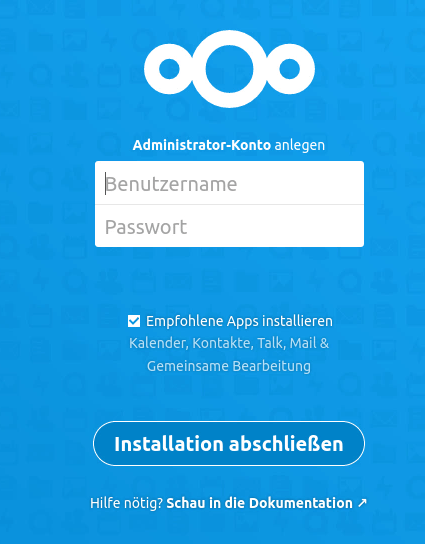
After that it is possible to unclick the checkbox again. You can ignore warnings about the database connection and proceed.
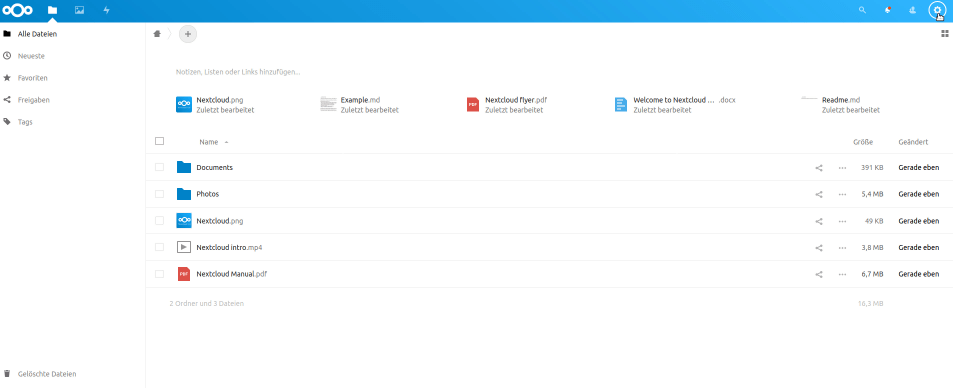
After a few seconds or minutes, you can see your Nextcloud dashboard.
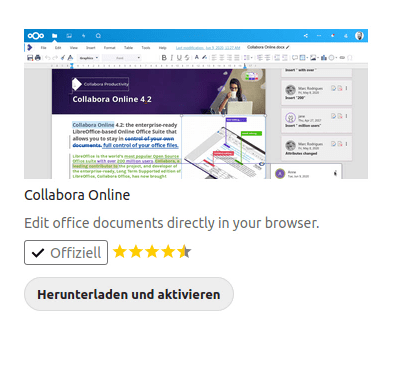
Please go to „Apps“ and „Office“ to install the „Collabora Online“ App.
Now you can navigate to preferences and „Collabora Online“. Choose to use your own server and type
https://office.domainname.comAnd than click on „Save“.
Oooops, here is something wrong! You got a connection error!!
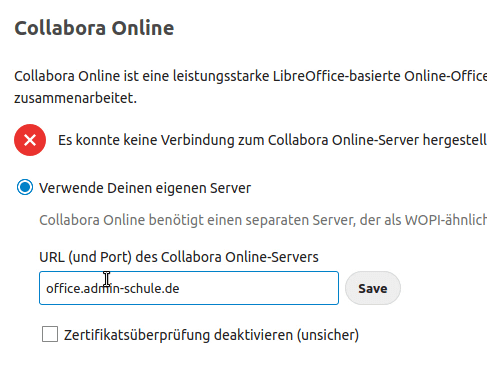
Solution for connection error
To solve the connection error between the Nextcloud and Collabora Container, we have to configure the CentOS 7 firewall daemon. To achive this, we navigate to the zonefile of the public zone.
cd /etc/firewalld/zones/Open the zone file for the public zone and configure it like this
<?xml version="1.0" encoding="utf-8"?>
<zone>
  <short>Public</short>
  <description>For use in public areas. You do not trust the other computers on networks to not harm your computer. Only selected incoming connections are accepted.</description>
  <service name="dhcpv6-client"/>
  <service name="ssh"/>
  <rule family="ipv4">
     <source address="172.19.0.0/16"/>
     <accept/>
  </rule>
</zone>
As you can see, we have added a rule for the subnet „172.19.0.0./16“. You have to configure your subnet for the containers. You can get this by inspecting the container network.
docker inspect docker_nextcloud_cloud-network | grep SubnetNow restart the firewall daemon
systemctl restart firewalld
And now the connection is ready. You can test it now by opening an office document in Nextcloud.

 SaxonyDevOps
Ein Kommentar zu “Nextcloud and Collabora on Docker”